iPhone

Every Apple Pay tap, logged as you pay.

Small taps are the purchases nobody writes down. A one-time Shortcuts automation logs each in-store Apple Pay payment in Yavo as you pay. No bank login, nothing to type.

Free to try. Cancel anytime.

Yavo expense detail screen for a payment imported from Apple Pay, with its category

How it works

You pay with Apple Pay

A coffee, groceries, the pharmacy. You hold your iPhone to the terminal like always.
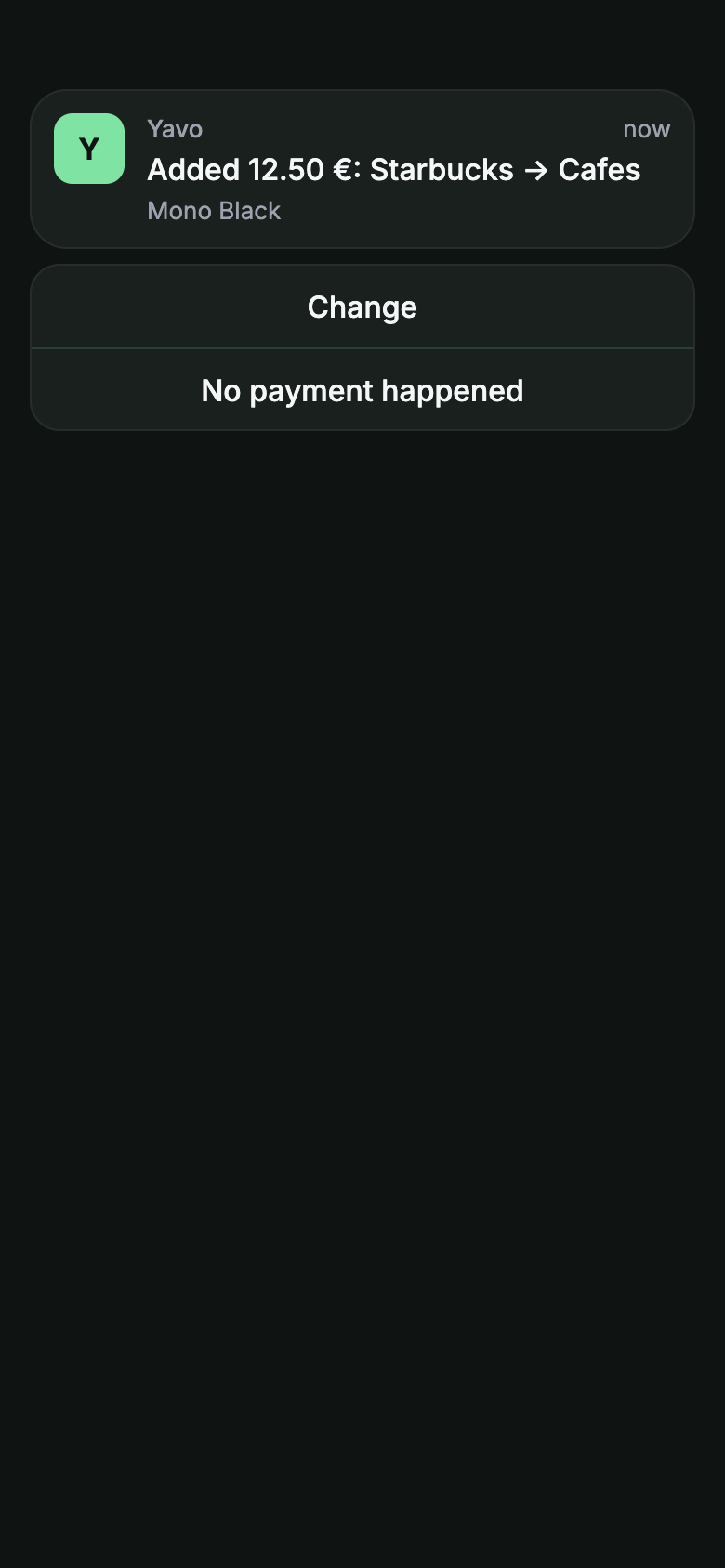
Yavo notification: added 12.50 euro at Starbucks, Cafes

The shortcut runs by itself

iOS notices the payment and runs the Yavo shortcut in the background. Nothing to open, nothing to confirm.
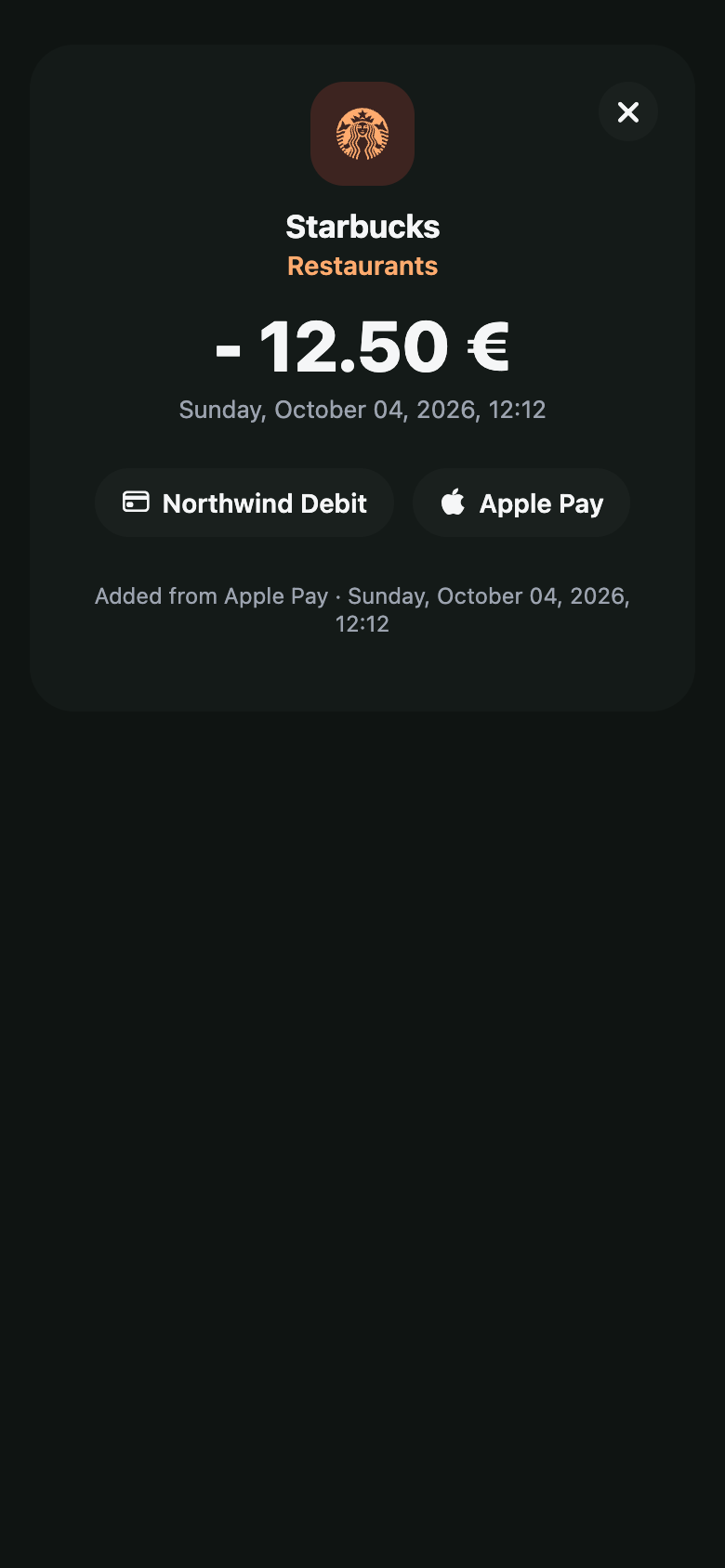
Yavo expense detail screen for a payment imported from Apple Pay, with its category

It appears in Yavo, with a category

The merchant and the amount land in your feed and count against your category limit for the month.

What you need

  • An iPhone with iOS 17 or later
  • Apple Pay set up in Wallet
  • The Shortcuts app, which is part of iOS
  • Yavo installed and signed in

Set it up once

About two minutes, in the Shortcuts app.

  1. 1Open Shortcuts, go to Automation and tap the plus button.
  2. 2Choose Transaction. Pick the cards it should apply to, or keep all of them.
  3. 3Set it to Run Immediately and switch off Notify When Run, so it never asks.
  4. 4Choose the Yavo shortcut that logs the payment.

Honest limits

  • In-store taps only. Online and in-app Apple Pay purchases are not captured this way; they come in through statements by email.
  • iPhone only, iOS 17 or later. Apple Watch payments are not captured.
  • The category is suggested from the merchant. The first purchase at a new place may need a correction.

If something does not work

Questions

Nothing to type.Nothing to connect.

Apple Pay taps in stores, statements by email, receipt photos and voice, all counting against a budget you can actually keep.

Free to try. Cancel anytime.