A budget that fills itself.
Email a statement or a receipt to your Yavo address and it lands in your budget, categorized. iPhone and Android. No bank login, ever.


Free to start. Premium removes the limits.
Forwarded to Yavo
Fwd: Your September statement
To k7f3q9x2@in.yavo-app.com
chase-statement-september.csv
- iPhone and Android.
- Forwards from Gmail, Outlook and iCloud Mail.
- Reads CSV, XLSX and PDF statements.
- No bank login, ever.
Nothing to type.
Four ways spending comes in on its own. Email works on every phone, Apple Pay on iPhone.
Statements by email.
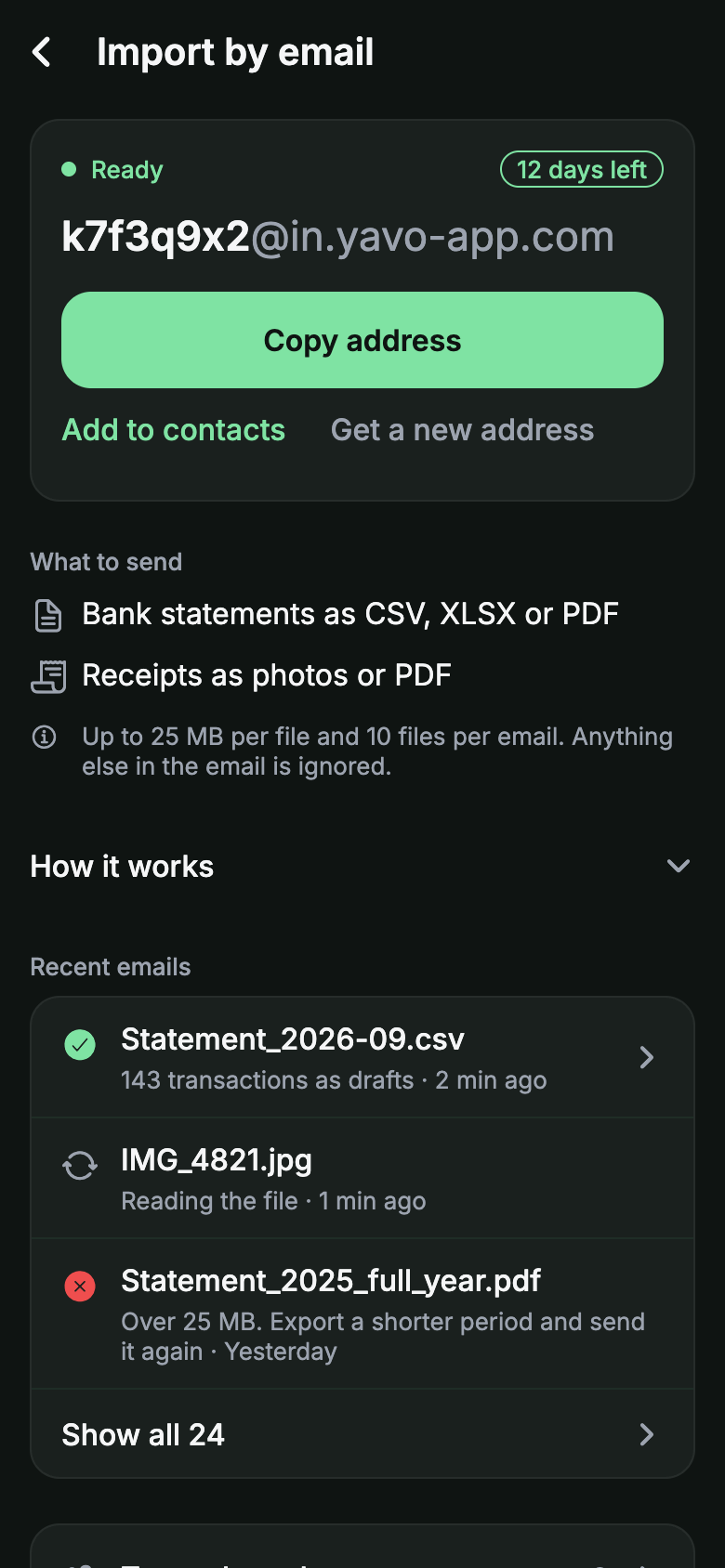
Online orders and your other cards come in this way: email a CSV, XLSX or PDF statement to your Yavo address.
iPhone and Android.
Which statements work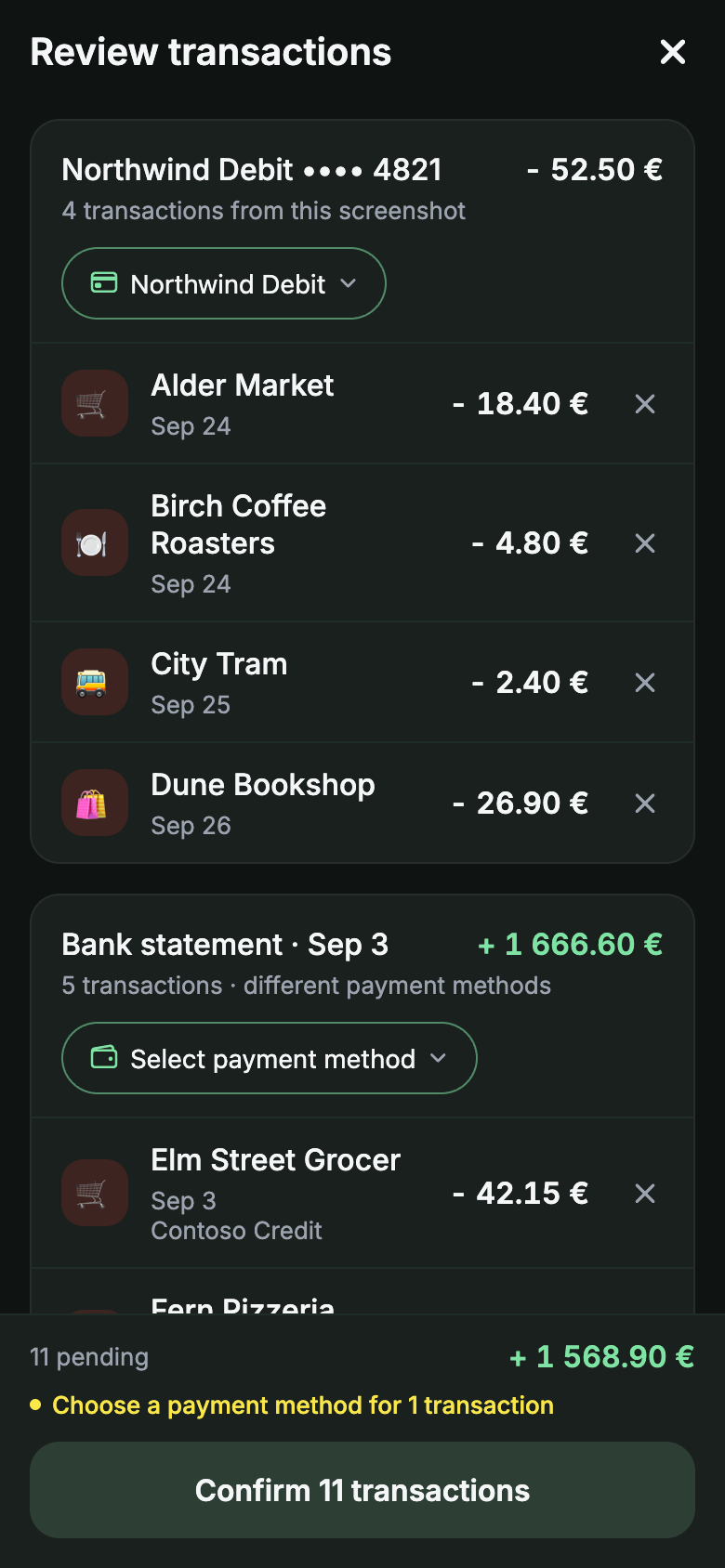
Receipt photos.
Cash or card, a photo of the receipt is enough. Yavo reads the merchant, the date and the total.
iPhone and Android.
Receipts by email work too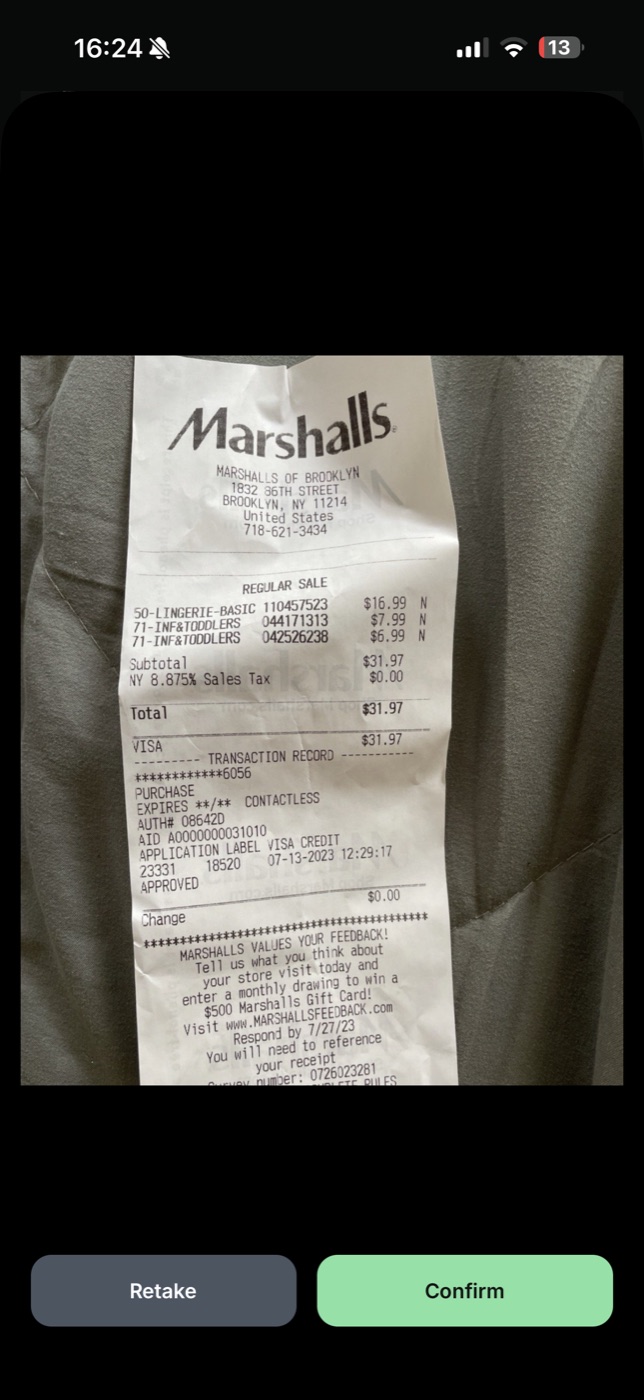
Voice.
Say what you spent while you still remember. Yavo logs it with a category.
iPhone and Android.
Twelve forty-nine at Walgreens, pharmacy.
Walgreens, Pharmacy-$12.49
Apple Pay in stores.
Tap to pay like always, and the purchase logs itself. One-time setup in the Shortcuts app.
iPhone with iOS 17 or later. Online purchases and other cards come in through statements by email.
How the Apple Pay setup works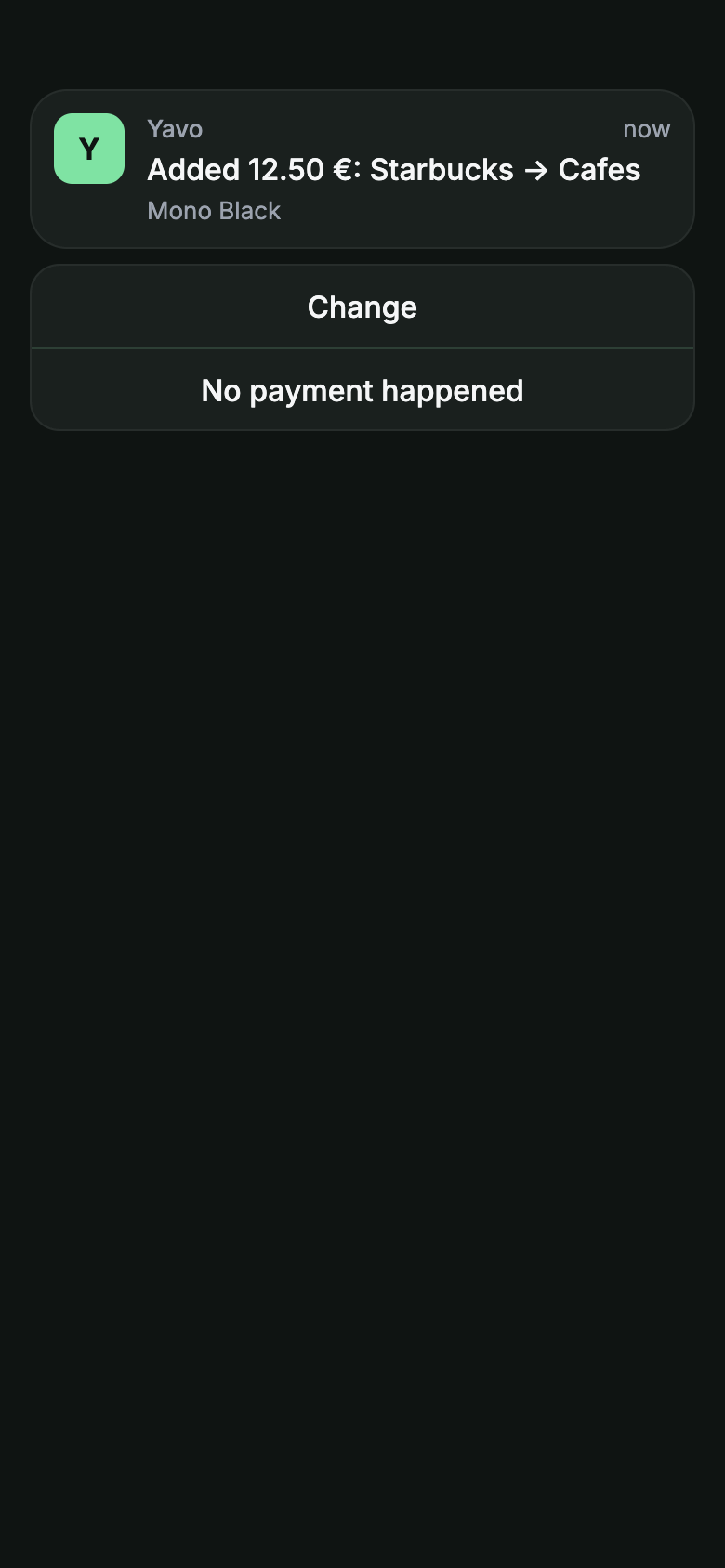
From an email to a budget line.
Every account has its own import address. Forward a statement to it, or let your mail app forward receipts and card alerts for you. Each one arrives as a draft you can check, then counts against your budget.
Forward the statement
From your bank app or online banking, as CSV, XLSX or PDF. Attach the file or forward the bank's own email.
To k7f3q9x2@in.yavo-app.com
Fwd: Your September statement
chase-statement-september.csv
Yavo reads it
The transactions arrive in the app as drafts, with the merchant, the amount, the date and a suggested category. Change anything that needs it.
It counts against your budget
Each one lands in its category and updates what is left to spend this month. Nothing to type.
Groceries$412 of $600
Trader Joe's, yesterday-$62.14
Left to spend$1,279.40
Apple Pay taps on iPhone, receipt photos and voice entries take the same path.
Then you know where you stand.
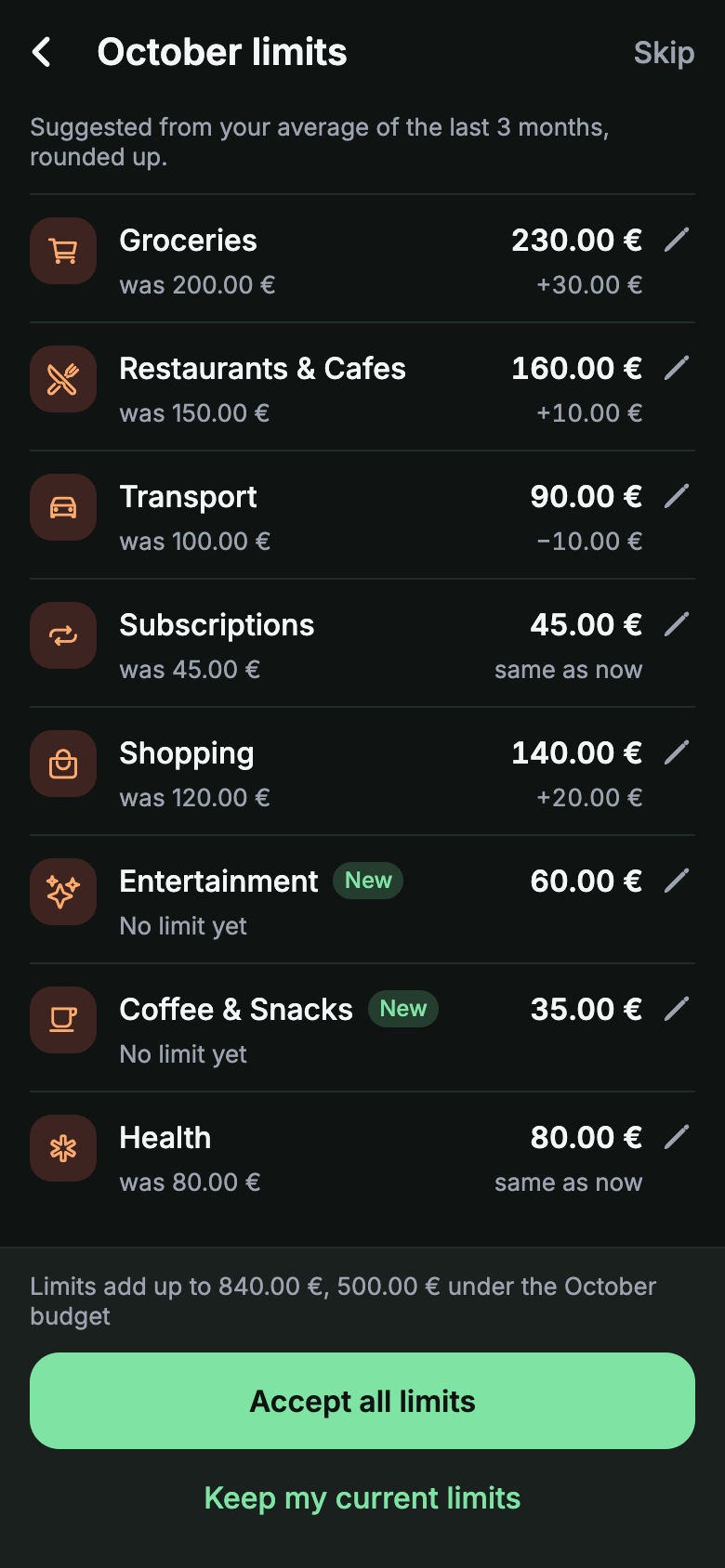
Budgets and limits
A limit per category, suggested from how you actually spend.
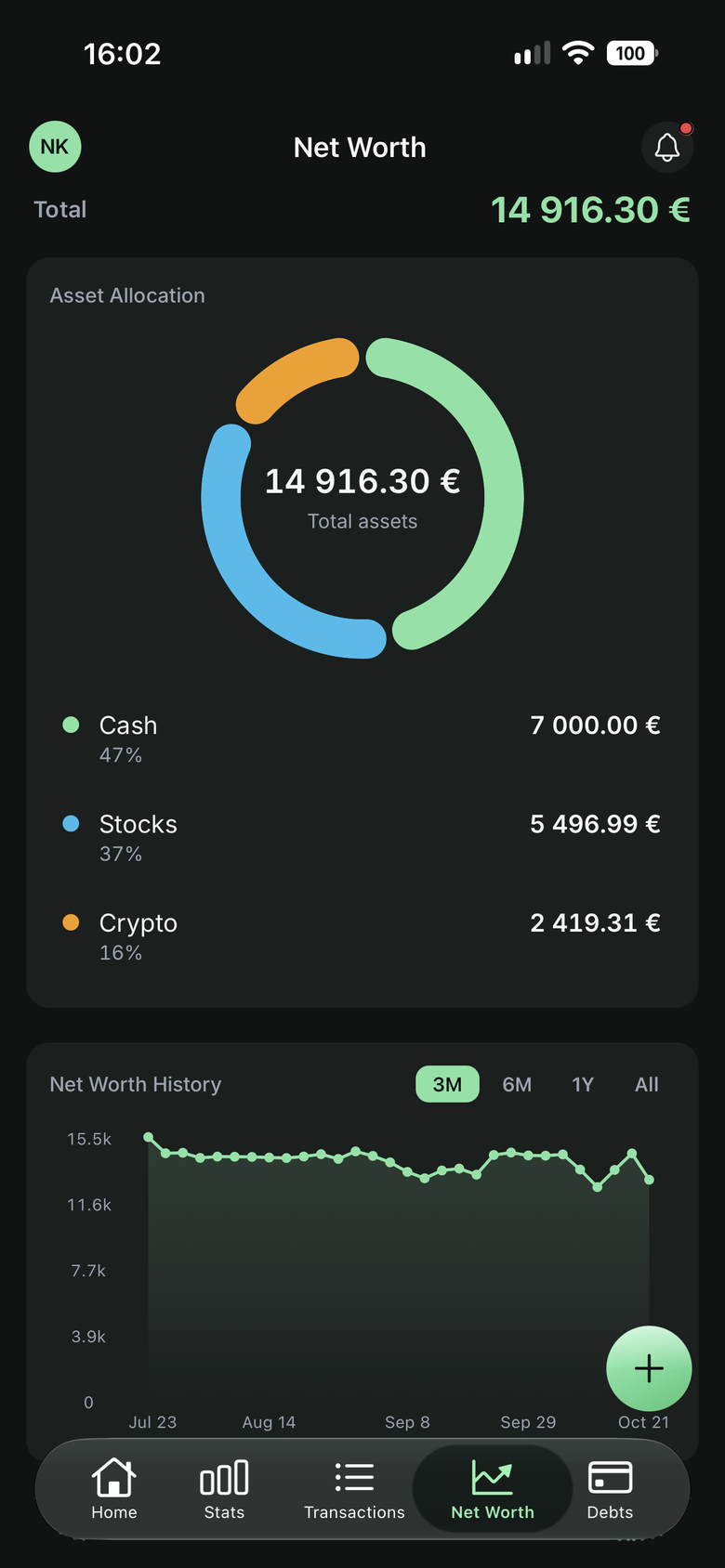
Net worth
Cash, stocks, crypto and what you owe in one number, priced in real time.
The monthly close
What is left goes somewhere on purpose: carry it over or move it to a goal.

More than one currency
Each expense keeps its original amount and counts in your home currency.

Subscriptions
One tap shows every recurring charge and what is due next.

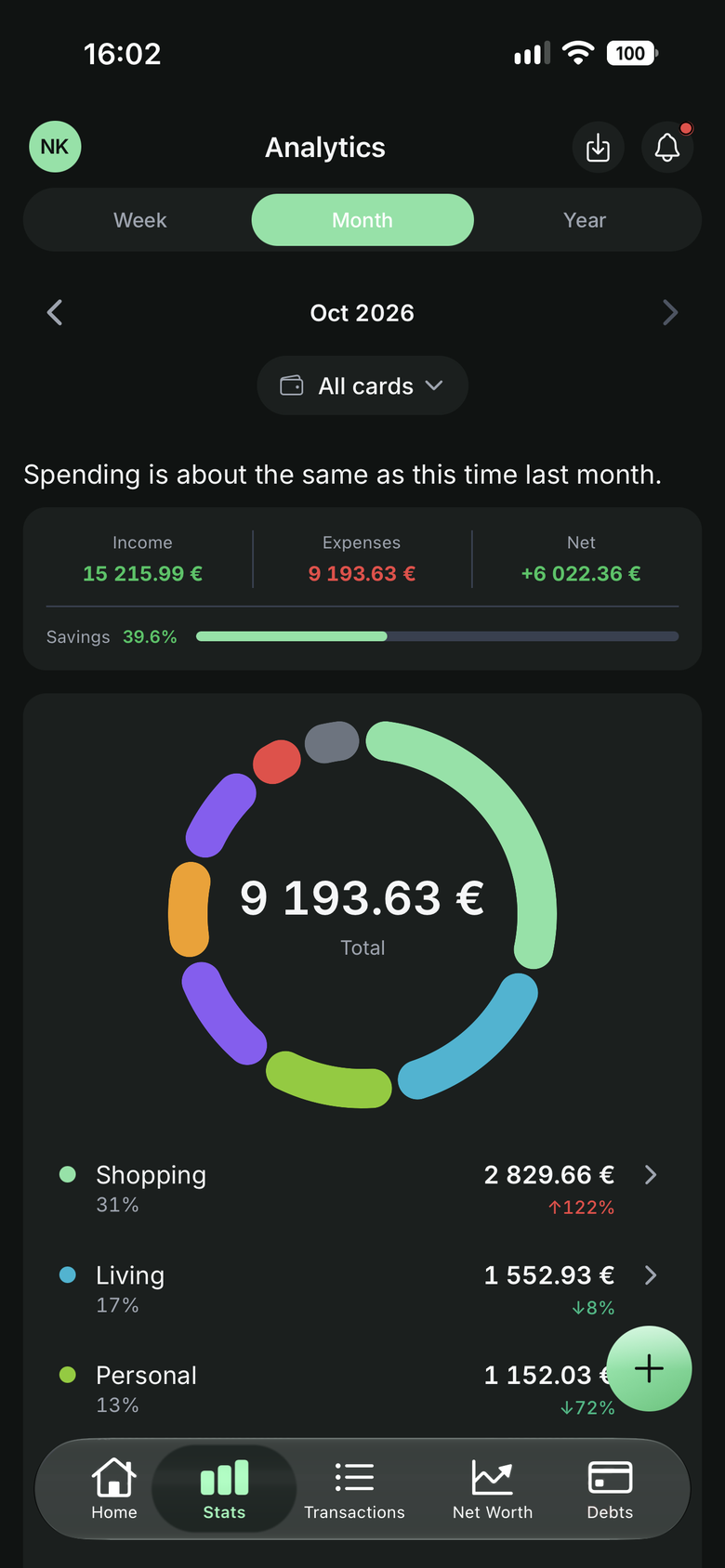
Reports
A chart by category and a written report that says what changed.
Attachments
A photo or a PDF stays with the expense, for the warranty or the invoice.
Your bank login stays with you.
Most budget apps log in to your bank for you. Yavo does not, on purpose, and still fills itself.
Nothing to connect, renew or revoke
Yavo never asks for your online banking password. There is no bank connection, so nothing stands between you and your bank.
You choose what comes in
The statements you send, the receipts you photograph, the Apple Pay taps you switch on. Nothing else is read.
Your data leaves when you do
Delete your account in the app and your transactions, receipts and reports are deleted with it.
Find what you still pay for.
Drop a CSV, XLSX or PDF bank statement and see every subscription in it and what it costs per year. CSV and Excel files are read in your browser and never leave it. Free, with no account and no app.
Drop a CSV, XLSX or PDF statement here
or choose a file from your computer. A PDF works too, after you confirm your email.
CSV and Excel files never leave your browser.
Open the Subscription FinderFree to start. Premium removes the limits.
Yavo Premium
Some features have a free limit. Premium removes them, monthly or yearly. Cancel anytime in your Apple Account or Google Play settings.
- Statements by email, unlimited
- Receipt photos and voice
- Apple Pay capture in stores, on iPhone
- Budgets, limits and the monthly close
- Goals, net worth and more than one currency
- Recurring and upcoming payments, written reports
$39.99
per year. Billed yearly.
About $3.33 a month: $31.89 (44%) less than 12 monthly payments.
$5.99
per month. Billed monthly.
Yearly is $39.99, which is $31.89 (44%) less than 12 monthly payments.
Payment is charged to your Apple Account or Google Play account when you confirm the purchase. The subscription renews automatically unless cancelled at least 24 hours before the end of the current period.
Before you download.
Is it safe to use a budget app without a bank login?
Safer than with one. Yavo never asks for your online banking password, so there is nothing to leak and no third party holding access to your account. Spending comes in from the statements you send, the receipts you photograph and, on iPhone, from Apple Pay.
Which bank statements work?
CSV, XLSX and PDF statements exported from your bank app or online banking. Send them to your personal Yavo import address.
What exactly does Apple Pay capture?
In-store Apple Pay taps on iPhone with iOS 17 or later, through a one-time Shortcuts automation. Online purchases and payments with other cards come in through statements by email.
Can I use more than one currency?
Yes. Log spending in the currency you paid in. Yavo keeps the original currency on each transaction.
Can I attach a receipt or an invoice to a transaction?
Yes. Open the transaction and add a photo from the camera or the gallery, or a PDF from your files. Each file can be up to 4 MB, and you can delete it again from the transaction.
How do I cancel?
In your Apple Account or Google Play subscription settings, anytime. Premium runs until the end of the period you paid for, then the free limits apply again.
How do I delete my data?
Delete your account from the app's settings. Your transactions, receipts and reports are deleted with it.
Nothing to type. Nothing to connect.
Statements and receipts by email, receipt photos, voice, and Apple Pay taps on iPhone, all counting against a budget you can actually keep.
Free to start. Premium removes the limits. Cancel anytime.